
Flash Tutorial: Breakout Game Tutorial Part 5
Flash Tutorial: Creating a Brick Breaking Paddle Game in Flash: Part 5
Level: This is a beginner lesson, but I will assume that the reader is familiar with the basic use of the Flash software including stage, timeline, drawing tools, property window, etc.
Version: I will be using Flash CS3 and AS2 (athough tut is compatible with earlier versions of Flash) and instructions are for the Mac. Windows users would use the PC counterparts for specific instructions on Flash Menu/Shortcut instuctions.
Description: The fifth part of a Flash tutorial on making a Flash game similar to the old BreakOut game for Atari. In previous parts, we created the movement for the paddle and the ball, set up the bricks and the script for collisions, added scores to our Flash game, and in our last tutorial, we set it up to go to a “You Win” screen. In this tutorial, we will set up a players “lives”, as well as what will happen when the player runs out of lives.
Demo:
(Refresh page if you don’t see the ball animation)
Let’s get started!
Let’s open up our Flash files from Part 4 of this game tutorial. While it’s not necessary, you may want to do a “Save As” and give your document a new name (“breakthru_game5.fla”). The reason you may want to do this is it might make it easier to review each part of the Flash tutorial later.
In our last tutorial, we set our Flash game to go to a new frame when the player “wins” the game (or clears the board). Now, we want our Flash movie to change if the player “loses” the game. By “losing” the game, we simply mean the player has run out of “lives” (or balls). So, the first thing we need to do is set up some new text boxes to display our players lives. This is done similarly to how we set up the score text in Part 3 of this Flash tutorial series. In fact, to get started, we are going to do a copy/paste of the text we set up.
Click on frame 1 of our main timeline (Scene 1), and be sure your “score text” label is not locked. On the stage, select both the static text box (where it says “Score”) and the dynamic text box (the box with the dotted line around it) (Fig. 1). Tip: It may be easier to select these if you lock all the other layers except your “score text” layer.
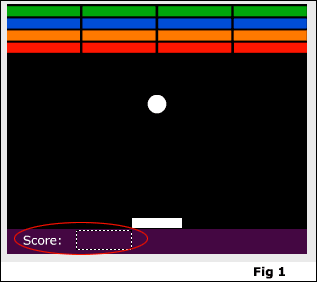
Choose “Edit > Copy” (command-C) to add these items to the clipboard. Add a new layer above your “score text” layer and name your new layer “Player lives”. Click on frame 1 of your new layer and choose “Edit > Paste” (command-V) to paste a copy of your text boxed to the stage. Position these boxes at the bottom right corner of the stage, aligned with your score text boxes. Double click on the “Score” text on the right side of the stage, and type the word “Lives”. Now, click on the dynamic text box next to the “Lives” text and in the Properties Panel (“Window > Properties > Properties” or command-F3) change the “var” text field to say “lives” (Fig 2). Last step is to click on frame 2 of our “Player Lives” layer, and right-click (option-click) and choose “Remove Frames” from the menu flyout.
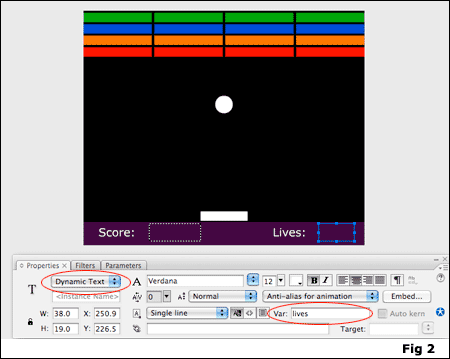
We now have our Player Lives text boxes ready, so now we have to add the code that will dynamically change when our paddle (player) misses the ball (player life). On our main timeline, click on frame 1 of the “actions” layer, open the Actions Panel (Windows > Actions or alt-F9) and add the following code below the existing code:
var lives = 5;
This, as you probably could guess, sets our dynamic text box with the var name of “lives” to display he number 5, where 5 is the number of chances the player has to drop the ball before losing the game.
Now that we assigned a number of player lives, we need to add some script that tells Flash to take away a life when the player misses the ball. On our stage, select the white circle (ball). You’ll remember in Part 1 of our Flash game tutorial we set added some script that reset our ball if the player missed the ball. In that same section of code (the if statement towards the bottom), we need to add some additional code to tell Flash to deduct a number from our “Lives” text box. Add the bold, blue code below to your existing code (green code should have been added in part 1):
if (this._y > 300) {
_root.lives -= 1;
if (_root.lives == 0) {
_root.play();
}
_x = 150;
_y = 100;
dir = Math.round(Math.random() * 1);
speed = 10;
if (dir == 1) {
var Ang = 45;
} else {
var Ang = 135;
}
xspeed = speed * Math.cos((Ang) * Math.PI / 180);
yspeed = speed * Math.sin((Ang) * Math.PI / 180);
}
}
Explanation of the new code:
if (this._y > 300) {
_root.lives -= 1;
If our ball y coordinate is greater than 300 (goes below the paddle), subtract our “lives” by 1.
if (_root.lives == 0) {
_root.play();
}
If our “lives” is equal to 0 (meaning we have no lives left), then play our main timeline.
Go ahead and test your movie. On start, you should see that you have “5” lives. Each time you miss a ball, you should see your lives go down by 1 number. If your lives goes all the way to 0, you should see frame 2 of your main timeline come up… but wait, it still says “You Win…”. Well, we don’t want it to say that unless we clear the board, so we need to make it say something other than that if we lose, right? Well, luckily Flash makes it pretty easy to do that.
—- ads by google —-
Click on frame 2 of the “You Win” layer in your Flash file. Select the “Congratulations…” text box, and in the properties panel, change the drop down to “Dynamic Text” and in the “Var” text field give it the name “gameOver”. You’ll notice that when you change the text box to “Dynamic Text”, the actual text in your box did not change. That’s because you can input text to a dynamic text box in Flash and have it display in your movie, but because it’s “dynamic” you can modify it using ActionScript code. So, since if the player wins, we want this text to read “Congratulations…” we will leave this. But, if the Player loses, we need it to say something else. We’ll add that code now.
Click on frame 2 of your “actions” layer, open your Actions Panel and add the following code below the existing code:
if (_root.lives == 0) {
gameOver = “<p align=’center’>Sorry, you lose! <br><br>Your Final Score Is:</p>”;
}
What this says is if our player lives is equal to zero, our dynamic text box should insert the text between the quotation marks. But hold on a minute… what’s with all the extra text here? Well, if your familiar with HTML code, you should recognize this as HTML markup language. That’s right, Flash can render HTML text in a dynamic text field! But, for this to happen, we need to tell our text box to render HTML code.
Click on frame 2 of the “You Win” layer, and select the top dynamic text box. In the Properties Panel, click on the “Render Text as HTML” button (the button with the angle brackets (<>) on it (Fig 3).
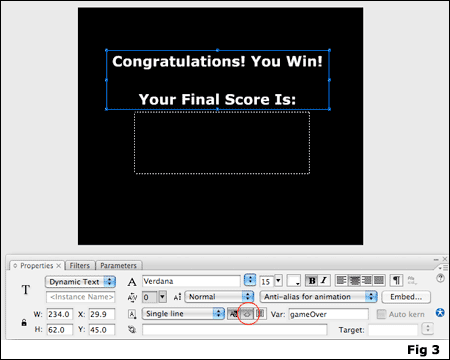
That’s it! I must say our game is looking pretty good right now, don’t you agree? We have our basic challenge of bouncing a ball into multiple bricks, we can keep score, and now we only have a certain amount of chances in order to accomplish our goal. Pretty cool. While this game seems pretty complete, there’s so much more we can do to this game, including adding a start screen, adding additional levels and making different skill levels. Study up on these tutorials, and hopefully you can figure out how to do some of these things yourself, but if not, check back soon as I plan to cover all of these steps in future tutorials!
Thanks for reading, and I hope you were able to follow along and create your own Flash game, and I also hope that they have given you a nice little primer for Flash game development. Good luck and don’t forget to check back soon to expand on our Flash Breakout Game!
Source files (Flash 8): Flash Tutorial: Breakthru Flash Game Part 5


Hi Mike,
Awesome, whenever i need help you are there. Great tutorial.
Thanks a lot again.
When I Try And Make It Say You Lose This Comes Up
**Error** Scene=Scene 1, layer=actions, frame=2:Line 6: Operator ‘=’ must be followed by an operand gameOver = “Sorry, you lose! Your Final Score Is:”;
Total ActionScript Errors: 1 Reported Errors: 1
Help?:sad:
Hey Josh,
Sorry you’re having problems with this. Not sure exactly what that error means… my first suggestion is to make sure your code reads:
if (_root.lives == 0) {
gameOver = “
Sorry, you lose!
Your Final Score Is:
”;
}
Also, the commented source file is available at the end of this tutorial. If you haven’t already, try downloading it and compare your file to mine. You may have placed the code in the wrong place.
If you still have a problem, you can try sending me your .fla file (contact@spitshine-deisgn.com) and I will take a look at it to see if I can find the problem.
Thanks for reading!
– Mike
I Have Tried And It Didnt Work So I Have Sent It To You
I’m having the same problem as Josh, maybe because I’m using MX? How did you solve his deal?
Hi Brian,
I haven’t solved Josh’s issue since I don’t know exactly what’s going wrong. He sent me the .fla file, but it was working (and I think it was only up to part 3 of the tutorials).
If you send me the .fla (contact@spitshine-design.com), I’d be happy to take a look and hopefully help solve the issue.
Thanks for reading!
– Mike
I know the problem. The internet doesn’t like speech marks (“) or apostrophies (‘) so you have to go through the code that you copied and replace them. I am using MX and it worked for me. Good luck.
It is great and all but you don’t have a button that says restart… this may help ALOT! Thank you.
Great Job on the Tutorial Mike.
And yes, Josh, your problem happens a lot! The quotes that you copied were smart quotes and will interfere with actionscripts. Always check your scripts for those.
And Mike, I tried to figure out a pause button on my own but couldn’t figure it out. Try and include that in a future tutorial.
Thanks
Hey Alex,
Because the ball movement is done by ActionScript, not sure if a pause button is possible. I do have one idea, but not sure if it would work.
Thanks for reading!
– Mike
epic tutorial thanks :grin::mrgreen::grin:
I got all the way to the last step successfully, changing a lot of things. (especially since all my blocks are different images)
..and nothing bad happened.
When I win, it brings me to the “you won” screen.
But when I lose, instead of displaying the “game over” text, it just flashes the “you won” text really fast, and the game starts over.
Any help? D:
Wait, never mind.. I figured out what was wrong (it was the quotes xD)
Hey well when i miss the ball the score goes down as well as the lives.
Hey David,
Sorry you’re having trouble with this… Not sure exactly what’s going on without seeing the code, but I would start by checking the var names of your dynamic text and make sure they are the same as what you call them in the script (and they would both need to be different names). Otherwise, you can try sending me the file (contact@spitshine-design.com) and I will try to troubleshoot it for you.
Thanks for reading!
– Mike
great tutorial
you explained your code very well
keep up the good work!!!!:
Thanks for a great tutorial! Everything worked great for me
First off I want to say way to go. This is a very simple, yet great game to make. I’ve put some interesting twist on the overall design and I’ve added in a restart button. I’m working on implementing more levels as well.
With respect to the error message:
**Error** Scene=Scene 1, layer=actions, frame=2:Line 6: Operator ‘=’ must be followed by an operand gameOver = “Sorry, you lose! Your Final Score Is:”;
I’ve come up with a quick fix. Firstly, on the 2nd frame of you win, change the text box back to static text. Then create a new layer called you lose and make up a losing message.. “Sorry, you lose” “Your final score is:” Create a second text box set as dynamic text with a var of ‘scoreFinal’
From here go to the 1st frame of actions, and under actions add:
if (_root.lives == 0) {
gotoAndStop(3);
}
I’m using Flash MX as well, this is a fix that uses a simple GoTo procedure. Hope this helps.
Thanks so much for your tutorial. First complete game I have made. Really cool even if I am copying from your knowledge. Hoping you would send me any updates to this tutorial. Love to create some sound . background as well as pings and whatknot sounds. and some exploding blocks would also be really cool.
Thanks again, love it.
p.s.
the “” marks need to be changed in order to complete the tutorial.
Hi!
everything is okay but then, when i loose, the you loose text just umm, what do you call this, umm, it appeared for only 1 millisecond.
Yeah and you know what im going to say next, which is
Help me
Cheers!
Oh wait, nevermind, i found out how :mrgreen:\

My last message before leaving this site
Great tutorial! Hope you can make more to help more people.
Cheers!
carmiecarmela
Hmmm, the part where you add the “you lose” text doesn’t work for me. I get the message:
Scene=demo destruct, Layer=actions, Frame=2: Line 4: Operator ‘=’ must be followed by an operand
gameOver = “Sorry, you lose! Your Final Score Is:”;
could someone help please?!
Very nice tutorial, its sooo easy to understand.
Serious, it is 1 of your best.
And stop saying sorry to all that don’t understand it
THANKS,
Erwt
never mind,
i read the above comments and changing the ” and ‘ worked.
thanks anyways, GREAT tut!
OK, problem:
i am using different stage dimensions, so when the ball spawns after losing a life it appears over the bricks at the top of the screen, destroying them.
What script do i need to change to fix this?
Any help appreciated.
thanks
Hi Ben,
Going back to Part 1 of this tutorial, you would need to change the _x and _y coordinates for when the ball goes below the bottom of the stage:
if (this._y > 300) {
_x = 150;
_y = 100;
In this example, “300” is the height of the stage (if your’s is different, you would need to change this”, and “150” and “100” are the coordinates where the ball is placed.
Hope this helps, thanks for reading.
– Mike
OK fixed it!
Thanks so much for the help,
Great tut!
thanks.
A nice tutorial Mike and good clear explination please do more on games as im interested in starting to create them.
tnxxxxxxx
[…] Part 5 […]
Hey brother you tuto is of very help
thanks
[…] Part 1 Part 2 Part 3 Part 4 Part 5 […]
I’ve never used flash before but this was an easy to follow and very well explained tutorial (i.e. I felt like I actually knew what I was doing, not just pasting code blindly).
So thanks! Fight on.
Just wanted to say thank you! I finished all five parts of the tutorial, and it was a great intro to learning Flash. Keep up the good work!
Flash Tutorial: Creating a Brick Breaking Paddle Game in Flash: Part 5…
The fifth part of a Flash tutorial on making a Flash game similar to the old BreakOut game for Atari. In previous parts, we created the movement for the paddle and the ball, set up the bricks and the script for collisions, added scores to our Flash gam…
Due to overwhelming response to this tutorial, comments for this post are closed. If you are having problems, please refer to other users comments above, as the issue may already have been addressed.
Thanks for reading,
Mike
[…] Part 5 […]