
Flash Tutorial: Breakout Game Tutorial Part 1
Flash Tutorial: Creating a Brick Breaking Paddle Game in Flash
Level: This is a beginner lesson, but I will assume that the reader is familiar with the basic use of the Flash software including stage, timeline, drawing tools, property window, etc.
Version: I will be using Flash CS3 and AS2 (athough tut is compatible with earlier versions of Flash) and instructions are for the Mac. Windows users would use the PC counterparts for specific instructions on Flash Menu/Shortcut instuctions.
Description: In this tutorial, I will explain the first part of making a game similar to the old BreakOut game for Atari. In this part, I will show you how to set up the ball and paddle movement for the demo below.
Demo:
Let’s get started!
Select “File > New” (command-“N”) and select Flash File (ActionScript 2.0) to open a new Flash document file. Save the file, and give it the appropriate name. I will call this “breakthru_game1.fla”. Feel free to change the document dimensions to whatever you like (“Modify > Document” or “command-J”), but for the purpose of this tutorial, I will use 300×250 pixels. Let’s also give our stage a background color of black. You can either do this using “Modify > Document” (command-J), or by setting the “Background” color in your “Properties Panel’ (“Window > Properties > Properties” or command-F3).
The first thing we will do is set up the ball. On the center of your stage, draw a small circle using the “Oval Tool” (“O”) approximately 15 pixels in diameter with a white fill and no stroke. (Tip: Hold “Shift” when dragging the mouse to draw a perfect circle). Select your circle and select “Modify > Convert to Symbol” (F8). In the “Convert to Symbol” dialog box, give your symbol a name of “mc_ball”, and select the “Movie Clip” radial. Also be sure to select the center box in the “Registration” (Fig 1) and hit “OK”.
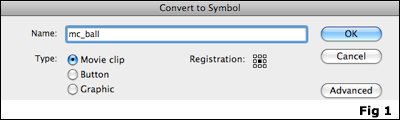
Now that our ball is a movie clip, we can add actions to it. Select your circle on the stage, and in the “Properties Panel”, give it an instance name of “ball”. With your ball still selected, open the “Actions” panel (“Window > Actions” or “alt-F9″) and insert the following code (I will try to explain the code later):
onClipEvent(load) {
dir = Math.round(Math.random() * 1);
speed =10;
if (dir == 1) {
var Ang = 45;
} else {
var Ang = 135;
}
xspeed = speed * Math.cos((Ang) * Math.PI / 180);
yspeed = speed * Math.sin((Ang) * Math.PI / 180);
}
onClipEvent(enterFrame) {
this._x += xspeed;
this._y += yspeed;
if ((this._x <= 5) || (this._x >= 295)) {
xspeed = -xspeed;
}
if ((this._y <= 5) || (_root.pad.hitTest(this))) {
yspeed = -yspeed;
}
if (this._y > 300) {
_x = 150;
_y = 100;
dir = Math.round(Math.random() * 1);
speed = 10;
if (dir == 1) {
var Ang = 45;
} else {
var Ang = 135;
}
xspeed = speed * Math.cos((Ang) * Math.PI / 180);
yspeed = speed * Math.sin((Ang) * Math.PI / 180);
}
}
We now have movement of our ball using ActionScript. You can go ahead and test your movie if you want (“Control > Test Movie” or command-Return). The ball will move towards the bottom of the page at an angle, disappear off the bottom and then start again from the center of the stage.
What we need to do now is create a “paddle” for our ball to bounce off of. For this, we will create a small rectangle, approximately 10 pixels high by 50 pixels wide, with a white fill and no stroke. Place this rectangle near the bottom edge of your stage. (Fig 2)
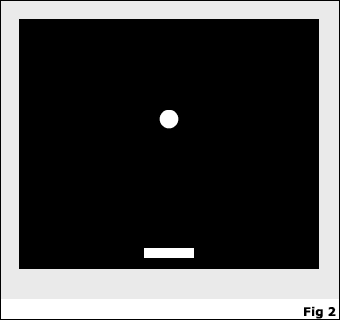
Select your rectangle, and choose “Modify > Convert to Symbol” (F8). Give your symbol a name of “mc_paddle” and be sure to select the “Movie Clip” radial. Now, with the rectangle selected on the main stage, give it an instance name of “pad”. With your movie clip still selected, open the Actions Panel and insert the following code:
onClipEvent(enterFrame) {
if(Key.isDown(Key.RIGHT)) {
if(this._x <= 275) {
this._x += 10
}
}
if(Key.isDown(Key.LEFT)) {
if(this._x >= 25) {
this._x -= 10;
}
}
}
That’s it! We have now set up the ball and paddle movement for our game. If you test your movie, you should see the ball move as before, and you should be able to move the paddle (rectangle) from side to side with the arrow keys. When the ball hits the paddle, the top or either the left or right side, it should bounce off and move in the opposite direction. Now, I will try to explain the code and hopefully it will help you understand what is happening here. I’ve also heavily commented the source code (for those of you who are impatient), which you can download below.
—- ads by google —-
Code Explanation for the Ball (circle):
onClipEvent(load) {
When the movie clip loads, perform the actions between the curly brackets.
dir = Math.round(Math.random() * 1);
Sets a random direction of either 0 or 1 where 0 = left, 1 = right.
speed =10;
Sets the speed the ball will travel. Higher the number, the faster the ball will move.
if (dir == 1) {
var Ang = 45;
If the direction of the ball (set randomly above) is equal to 1 (right), then the angle of the movement will be 45 degrees.
} else {
var Ang = 135;
}
Otherwise, the angle of the movement will be 135 degrees.
xspeed = speed * Math.cos((Ang) * Math.PI / 180);
Sets the x vector for the ang, and tells flash how much to move the balls x coordinate.
yspeed = speed * Math.sin((Ang) * Math.PI / 180);
}
Sets the y vector for the ang, and tells flash how much to move the balls y coordinate.
onClipEvent(enterFrame) {
When the clip enters this frame, perform the actions between the curly brackets.
this._x += xspeed;
this._y += yspeed;
Sets the _x and _y coordinates to the xspeed and yspeed we determined on the onLoad above.
if ((this._x <= 5) || (this._x >= 295)) {
xspeed = -xspeed;
}
If the _x coordinate is less than five or (||) the _x coordinate is greater than 295, reverse the xspeed of the ball. Basically, what this says is if the ball hits either side of the stage, reverse the direction (change xspeed from postive to negative or vice versa). The numbers 5 (left edge) and 295 (right edge) correspond to the size of your stage and take into account that the _x coordinate of your ball is based on the center point. For the true “edge” of the stage we would use 0 and 300 (the width of the stage), but then half the ball would be off the visible area of the stage before the direction change took effect.
if ((this._y <= 5) || (_root.pad.hitTest(this))) {
yspeed = -yspeed;
}
This is basically doing the same as our _x statement above, but is setting the _y coordinate to change direction if it hits either the top of the stage (_y<=5), or if it hits the pad (_root.pad.hitTest(this))) where “this” is the ball and “_root.pad.” is the rectangle instance name.
if (this._y > 300) {
if the ball goes below the bottom of the stage (greater than 300, our stage height of 250 plus a little extra so there is a slight pause when we miss it)
_x = 150;
_y = 100;
dir = Math.round(Math.random() * 1);
speed = 10;
if (dir == 1) {
var Ang = 45;
} else {
var Ang = 135;
}
xspeed = speed * Math.cos((Ang) * Math.PI / 180);
yspeed = speed * Math.sin((Ang) * Math.PI / 180);
}
}
Set a new ball using the same actions we used for the “onLoad” above.
Code explanation for the paddle (much simpler than the ball…):
onClipEvent(enterFrame) {
On enterFrame, perform the action between the curly brackets.
if(Key.isDown(Key.RIGHT)) {
If the right arrow key is pressed….
if(this._x <= 275) {
and the _x coordinate is less than 275 (the width of our stage minus 1/2 the width of our paddle)…
this._x += 10
}
}
move the paddle 10 pixels to the right.
if(Key.isDown(Key.LEFT)) {
If the left arrow key is pressed…
if(this._x >= 25) {
and the _x coordinate is greater than 25 (1/2 the width of our paddle)…
this._x -= 10;
}
}
}
move the paddle 10 pixels to the left.
Since there is a lot going on with this, I decided to break this game tutorial into several parts. Check back soon for Part 2 which will explain how to set up the bricks which is really what turns this into a fun, interactive game.
Continue to Part 2 >>
Source Files (Flash 8): Flash Tutorial: Breakthru Flash Game Part 1


[…] Atari. In this part, I will show you how to set up the ball and paddle movement for the demo below.http://mikestickney.com/wordpress/flash-tutorial-breakout-game-part-1/Old School Video Games – Page 2 – DJ Z-Trip / Official ForumsOld School Video games Off the Subject. […]
Nice tutorial! It was chosen for the main page of http://www.tutorialsroom.com and under Flash tutorials. Please feel free to submit more of your good tutorials using this link: http://www.tutorialsroom.com/tutorials/submit_tutorials.html.
Other parts will be added too.
did not work help
Hi Matt,
I’d be happy to help you, but I’m going to need more information as to what is not working.
Thanks for reading
– Mike
hi someone possibly u not sure gave me the link for this on kongregate its awsome helped alot
the ball just goes past the padlde
The ball will not bounce off the paddle
Hi Dan and Gamesman,
Sorry that this is not working for you. Unfortunately I can’t really help you out without knowing more information, specifically the code you have. If you send me the .fla file to contact@spitshine-design.com, I would be happy to take a look and try to help fix the problem.
Also, try downloading the source file at the end of this tutorial. I always try to comment the code to help users understand what’s it means, so maybe this will help you figure out the problem.
Thanks for reading
– Mike
Dan and Gamesman,
I had the same problem as you did but I fixed mine. What you need to do is check that the mc_ball instance name is definately “ball” and that the mc_paddle instance name is definately “pad”. Then select both Movie Clips, right-click then goto Arrange>Send to Back. That way, the ball isn’t in front of or behind the paddle and won’t go past it. When you said it was going “through” the paddle, it was actually going “past” the paddle as the paddle will have been in front of the ball. Hope this helps
Hi Zero One,
Thanks for the tip. You are definitely correct in that (if you use my code exactly) you need to be sure the instance names match the script (i.e. mc_ball= “ball” and mc_paddle=”pad”). However, for the part about selecting them and using “Send to Back”, I’m not so sure this is necessary, especially since the ball and paddle are on separate layers. “Send to Back” (and “Send to Front”, etc.) are used for items that are drawn or placed on the SAME layer. I’d be interested to know if you still had a problem after double checking the instance names.
Either way, thanks for the input. I can get very busy trying to help people out, so any advice from the readers is always welcome.
Thanks,
Mike
It probably was just a random occurence that it worked when I aligned it.
The problem that the ball won’t bounce off the paddle is solved by putting in the instance name for the paddle (call it “pad” as mentioned in the code for the ball.)
Hi again. I was trying to alter the code so that when mc_ball hits off mc_playarealeft and mc_playarearight, I wanted it to play alleywaygbsidehit, but I couldn’t get it to work. This means deleting the bits that say that if it reaches 150 and 100 on the X axis then reverse direction. Could someone make this code for me? The instance names for these are mc_ball: ball. mc_playarealeft: pal and mc_playarearight: par.
Hi Zero One,
After a quick look at this, I think what you need is to set up a simple hit test… so, on the “ball” instance, you can add the following code:
if (_root.mc_playarealeft.hitTest(this))) {
_root.alleywaygbsidehit.play();
}
This assumes that “mc_playarealeft” and “alleywaygbsidehit” are the INSTANCE names of the clips on the stage. Again, just a quick look at it, so you’ll have to let me know if this helps your problem.
Thanks for reading!
Mike
i am following your tut and my hit test is not working iam creating game inside of movie clip so i think the line that says
if ((this._y<=5) || (_root.pad.hitTest(this))) {
yspeed = -yspeed;
}
is causing problem since pad is not on the root is there any way to do hit test inside of MC.
Hi Dominick,
Yes you can do a hitTest inside an mc, you just need to add that mc instance name to the hitTest string… so your code would change like this (where “mc_name” would be your movie clip instance name that contains the “pad” mc):
if ((this._y<=5) || (_root.mc_name.pad.hitTest(this))) { yspeed = -yspeed; } Hope this helps! Mike
Mike
Thanks for the tip. Iam gonna try it out right now. Excellent site you have here. Keep up the awesome tutorials.
Dominick
[…] Create a Breakout Type Game […]
First off, Great tut, well explained!
unfortunately, i am using different stage dimensions and i am unsure of which numbers i need to change to get the ball to stay within in the stage.
at the moment, the ball goes too far off to the left and up, and not far enough right.
also, when you lose a life, the ball sometimes appears right over the ‘bricks’ so that they are automatically hit and disappear.
any help would be greatly appreciated!
thanks and great work!
I remember creating this style of game for flash lite on a nokia n70
[…] Part 1 Part 2 Part 3 Part 4 Part 5 […]
[…] Create a Breakout Type Game […]
[…] Create a Breakout Type Game […]
Flash Tutorial: Breakout Flash Game part 1…
In this tutorial, I will explain the first part of making a game similar to the old BreakOut game for Atari. In this part, I will show you how to set up the ball and paddle movement….
[…] assignment I choose to remake the old-school game ‘Breakout’ by using the following tutorial and then expanding the content to gain more insight into […]
Hi Mike,
I’m trying to learn this, but when I create and select the movie clip for the ball I get a message in the Actions window “Current selection can not have an action applied to it.” What am I doing wrong. I have the Action Script version set to 2.0
I have the ball on it’s own layer, and I thought I was to apply the action scripting to a the movie clip.
Thanks,
Zac
Thanks for writing this great blog I really enjoyed.
Due to overwhelming response to this tutorial, comments for this post are closed. If you are having problems, please refer to other users comments above, as the issue may already have been addressed.
Thanks for reading,
Mike
[…] Create a Breakout Type Game […]
[…] Part 1 […]