
Flash Tutorial: Quick and Easy Zoom Effect on Mouse Over
Flash Tutorial: Quick and Easy Zoom Effect on Mouse Over
Level: This is a beginner level tutorial, but knowledge of the Flash drawing tools is assumed.
Version: I will be using Flash CS3 and AS2 (although tut is compatible with earlier versions of Flash) and instructions are for the Mac. Windows users would use the PC counterparts for specific instructions on Flash Menu/Shortcut instuctions.
Description: In this tutorial, I will demonstrate a quick and easy zoom in/out technique using a motion tween and a little ActionScript.
Demo:
Let’s get started!
Select “File > New” (command-“N”) and select Flash File (ActionScript 2.0) to open a new Flash document file.
Save the file, and give it an appropriate name. I will call this “zoom_tut1.fla”. Feel free to change the document dimensions to whatever you like (“Modify > Document or “command-J”), but for the purpose of this tutorial, I will use 350×200 pixels.
The first thing we need to do is draw the object that we want to have zoom in and out. You can have this be whatever you like, but I will just use a simple rectangle with some text inside it. To do this, select the rectangle tool, give a fill color (whatever you like, it doesn’t matter), and a stroke if you desire (I chose a black fill with no stroke). Draw a small rectangle on the center of your stage. With the selection tool, select your rectangle (click-drag around your shape or double click on the shape) and choose “Modify > Convert to Symbol” (F8). Give your symbol an appropriate name (I called mine “box”), select the Movie Clip radial and hit “OK”. Your rectangle is now a movie clip symbol and should be available in your Library window (Window > Library or cmd-L).
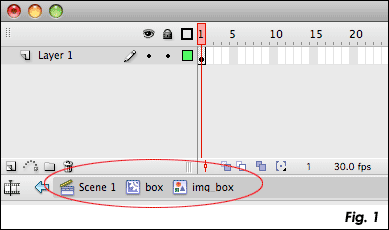
Double click on your symbol (either on the stage or in your Library) to bring you into symbol editing mode. Within your movie clip symbol, select your rectangle and choose “Modify > Convert to Symbol” (F8) again, however this time choose the Graphic radial and give this symbol a new name (I chose “img_box”) and hit “OK”. We now have a “nested” symbol… a graphic symbol that is within our movie clip symbol. Now, click on your rectangle to bring you into editing mode for the graphic symbol. Tip: you will see a “breadcrumb” of what symbol your are currently in mode under your timeline (Fig. 1).
Add a new layer to your graphic symbol and with the Text tool, draw a box in the center of your rectangle and type “Zoom” (or whatever you like). While you don’t really need text for this symbol, I wanted to try and illustrate that this tutorial will work whether your object is on one layer, or if you have a symbol with multiple layers.
We now need to edit our movie clip symbol, so you can either double click on the symbol in your Library, or use the “breadcrumb” link under the timeline (Fig. 1). Tip: you will only see the breadcrumb of a nested symbol if you select your symbol by double clicking the object on your stage. If you select your symbol in the Library, you will only see the name of the symbol you selected. It is important to remember that whether you select the symbol directly from your library or by clicking on it’s instance on the stage, you are editing ALL instances of the symbol.
—- ads by google —-
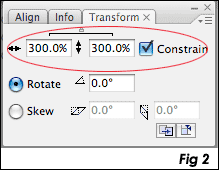
In our movie clip symbol, click on frame 15 and choose “Insert > Timeline > Keyframe” (F6). On frame 15, select your rectangle (clicking only once) and scale the symbol to about 300% (or the maximum size you want your object to be able to zoom). Tip: to easily scale an object use the “Transform” pallette (Window > Transform or cmd-T) and input a number (Fig. 2).
Still in our movie clip symbol, click on a frame between 1 and 15 in our timeline and choose “Insert > Timeline > Create Motion Tween”. The color of the timeline on this layer should turn a light blue and you will see a solid arrow between frames 1 and 15 (Fig. 3). What we now have is an animation of a rectangle that goes from small to large. Now, we need to add some simple ActionScript that will control the zoom effect.
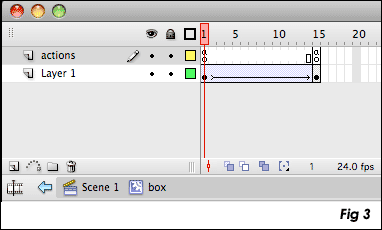
Let’s start by adding a new layer to our movie clip symbol. Move this layer to the top and name it “actions”. On frame 1, add the following code to our Actions Panel (Windows > Actions or alt-F9):
stop();
this.onEnterFrame = function(){
if(zoom == true){
prevFrame();
}
}this.onRollOver = function(){
zoom = false;
play();
}this.onRollOut = function(){
zoom = true;
}
On frame 15 of our “actions” layer, add the following code to the Actions Panel:
stop();
One last thing we want to do is change the frame rate (fps) in order to give our zoom a smoother animation. To do this, choose “Modify > Document” or cmd-J to open the document properties window, and change the number in the “Frame Rate” field (Fig. 4).
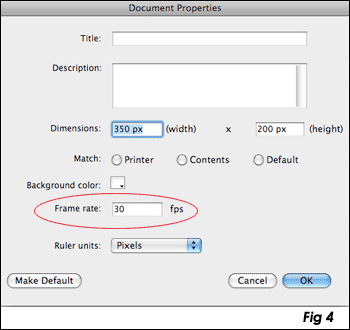
The default rate of Flash is 12, and the most common rates are 12, 24 or 30 with 30 being probably the fastest you would want to make it. For this tutorial, I have chosen to use 30 fps. Tip: “fps” stands for “frames per second”, thus changing the frame rate will also change the speed of your animation (your zoom effect). The higher the frame rate, the faster your animation. 12 fps works well for the web, especially if there is a lot of animation. Since this was a simple animation, we can get a nice smooth zoom by upping the fps to 30. We could also control the smoothness of our animation by adding or subtracting the number of frames in our movie clip timeline. The important thing to do is to find a nice balance of frame rate and length of timeline, and in most cases this is done simply by testing your movie. However, it is my recommendation to not tweak the fps once your movie is built but to add or subtract frames from your timeline.
That’s it! Go ahead and test your movie. Place your mouse over the rectangle, and you should see your object zoom in… move your mouse off the object and it will zoom out and return back to the original size.
Now my favorite part – explaining the code!
stop();
This is a simple stop action that tells our movie clip to stop playing since we want to control the animation with our mouse.
this.onEnterFrame = function(){
This is saying everytime our player enters the frame, perform the actions between the curly brackets. Note: “this.” refers to the movie clip that this action is placed in. It is optional, but good practice to use it.
if(zoom == true){
prevFrame();
}
}
The “if” statement is asking if a variable of “zoom” is true, and if it is, then perform the actions between the curly brackets.
this.onRollOver = function(){
zoom = false;
play();
}
This is saying when we roll over our object (remember “this.” is referring to the movie clip this script is in) perform the actions between the curly brackets. The actions are telling the player that “zoom” is equal to “false“, which means we are not performing the “if” statement above, but so we will “play” our movie (zooming in).
this.onRollOut = function(){
zoom = true;
}
This is telling the Flash player that when we roll off our object, our “zoom” is equal to “true“, so we will perform the if statement above which is telling the player to go to the previous frame and basically rewinding our timeline (zooming out).
While the same type of zooming effects can be created using just ActionScript rather than motion tweens (which I hope to show in a future tutorial), I hope you find that this is a very quick and simple way to create a zoom effect in Flash. And if you’re creative and understand the code, you can use this to control any type of animation, not just a zoom in/out.
I hope you enjoyed this Flash tutorial and thanks for reading. As always, feel free to leave comments below.
Source file (Flash 8): Flash Tutorial: Quick and Easy Zoom effect on Mouse Over


Hi there, Im reading this site for the 1st time and Mike, youre a bit of a genious I must say. Looking forward to trying out some of your tutorials.
I was most interested in the tutorial that Lou was asking for help about, the zoom in on technical diagram. If youre out there Lou, any chance I could get in touch and get a sneak peak of your project? I’m currently exploring a similar zoom idea. That would be awesome!
-SuziQ
Hi Gowri,
Unfortunately, I haven’t had a lot of experience exporting for .exe, however I believe the .exe only compiles the Flash player assets. You would still need to include the other assets (.xml and as files) in the same folder as the .exe file. I apologize that I don’t have much free time these days to try and look into a better answer for you, but hope this helps.
– Mike
Hi SuziQ,
A couple other readers have shown interest in the project that Lou was working on. Lou and I worked together on that quite a bit, and so I’ve come up with quite a few ideas of writing a similar tutorial. Unfortunately, I just haven’t had the time lately to get it done… working full-time, new freelance projects, and moving into a new apartment… Things are starting to settle down a little now that summer is coming to an end, so hopefully get some new tutorials (including that one) up soon. Lou’s project came out pretty good (a few glitches that needed some work…), so it’s definitely something I plan to write a tutorial based on. However, Lou’s project was a real-world project with copyrighted imagery and information so I am unable to share the actual project with my readers, but I am anxious to write a similar tutorial, so check back soon.
Thanks for reading,
Mike
Hi Mike
thanks for the great tutorial. I can make it work (after switching to Actionscript 2.0) but the part i just cant get right is the nested graphic symbol. (I created mine without the text). When I try to create a symbol nested in another…my breadcrumb doesn’t look like figure 1…it simply creates another in scene 1? I’ve tried everything, I am making sure i am in symbol editing mode before creating the new symbol, but no luck. help?!
Hey Mike,
I am using a very old version of flash (5) and I can’t get the zoom affect to work. I’ve followed step by step 3 times and think it has something to do with my version. Any thoughts? I don’t have the ability to select ActionScripts 2.0 at the beginning, so I am wondering if that might have something to do with it?
Thanks!
Brendan
Hi BG,
It might be your version of Flash. I’m not sure which version AS 2.0 started (I’ll have to do a little research), but you should be able to select AS 2.0 or 1.0. Try going to Edit > Publish Settings and see if you can change it there. This tutorial is for AS 2.0, so that could be your problem. Sorry I couldn’t be of more help, but I’ll try and research the version thing.
Thanks for reading,
Mike
Mike,
Thanks for posting this tutorial – it’s really just what I was looking for. As a newb to flash, it seems the perfect thing.
However, I’m finding that your graphics links seem to be broken. Just thought you would want to know.
~Matt
hi Mike
my zoom effect on mouse over application have been used with thumbnail images but the problem is sompart of zoomed image is covered by the other thumbnail images. what can I do to make my zoomed image uncoverable. On the other hand, I want to solve this problem by do the same like this website “http://www.centerpoint.co.th/new/main.asp”. what can I do
hello! nice tutorial – has good applications as a button for nav.
thats where i am stuck now…i have a movieclip that expands on mouseover (menuLeft) inside of which are intended to be several buttons (btnOne, btnTwo, etc) but when I click one it always opens the last buttons url, or depending on variation in code opens all the movieclips urls at once regardless of what is clicked…
i have all my actions in the main _root of the movie like thus:
_root.menuLeft.onRelease function = ()
{
btnOne.getURL (“http://www.google.com”);
}
_root.menuLeft.onRelease function = ()
{
btnTwo.getURL (“http://www.yahoo.com”);
}
any ideas???
Hi Hinsel,
Not sure if I understand it correctly, but I think the code ou would need to use would be this:
_root.menuLeft.btnOne.onRelease function = ()
{
getURL (”http://www.google.com”);
}
_root.menuLeft.btnTwo.onRelease function = ()
{
getURL (”http://www.yahoo.com”);
}
Hopefully that helps. Thanks for reading!
– Mike
Great tute thanks Mike. Just one point, and I think it’s an issue that’s given rise to several “it’s not working” comments is that in the tute you don’t say that in the actions layer frame 15 should be made a keyframe before you add the stop() action. You could change the tute to something like:
In the movie clip, right click on frame 15 of the “actions” layer, and select ‘insert keyframe’ then add the following code to that frame in the Actions Panel:
stop();
I know you cover this in a post and it’s shown in the source file but if it’s not mentioned in the tute, beginners will get confused!
All the best Mike and thanks for a great tutorial.
Ed
Hi Mike
I’m a bit late to the party here, but I only recently found your excellent tutorial. I’m fairly new to web design, but have recently completed some exams and have found a few clients for my services.
I just have one small problem with the zoom technique: Is it possible to have multiple instances of the zoom within the same movie clip?
I am trying to build a page which shows thumbnail images of other sites I have built, and I want each one to zoom up on rollover (or on cllick would be better!). The problem is that when I rollover any image, they all zoom up together!
I have so far set up two layers in Flash 8, both the same length of 15 frames, and a third layer containing your actionscript code. The Zoom function works exactly as it should (except that it judders when the mouse hovers over the image border!); however, my problem is that I can’t get only one image to zoom up, its all or nothing!
Any thoughts?
Thanks
Sarah
x
Hey Mike,
I was also very happy to have found your tutorial and I’m amazed by the effort and time you put in to help people like me (flash-beginners …very much so..)..
I scanned the questions that have been asked already but nobody seemed to have my problem….
when I want to choose insert>timeline>motion tween….it’s just not available to choose…basically…..I tried choosing the classic tween but then it just moves the picture and showing it bigger at the end instead of zooming like it does in your example …I did however choose motion tween without the timeline….then I get a lightblue but nothing happens….no arrow appearing…
any thoughts on that?
Hope you still receive and answer questions….
Thanks a lot in advance!!! Bernadette
Mike
it is possible to change the “zoom” code to others which suite the CS3 without changing the publish setting? as im try to perform an action with code that only suite for CS3, i cant change the publish setting to CS2.
thank you
hello, I’m very new to Flash but learning as I go… I finished my project and I have made ads flow in and out for our website…. now want to add links to some of those ads and it would be nice too for it to stop when the user puts his cursor over it…. can someone help me? I’m not good with action script writing….
Hi Mike,
Thank you very much, also for everyone else who has published a comment or question! My banner turns out great, still working on it though
Regards, Appie
hi mike. thanks for this great tutorials. so…i have a question.
if you have a look at: http://cdr.webhat.it in the index page….there is a gallery almost like you have done. you can see it in “prodotti” section. how can i obtain that effect? thanks a lot.
Great tutorial.
I’m struggling to make the swapDepth work. I finally got the objects to layer correctly, after I added the first line to the code for each of my objects (see below) that would bring each item back to the base level.
What is happening now is that the zoomed items remain on the stage (in their unzoomed states), even after I switch to another movie clip (the zoom function is one image in a gallery).
this.swapDepths(1);
stop();
this.onEnterFrame = function(){
if(zoom == true){
prevFrame();
}
}
this.onRollOver = function(){
zoom = false;
play();
this.swapDepths(2);
}
this.onRollOut = function(){
zoom = true;
}
Due to overwhelming response to this tutorial, comments for this post are closed. If you are having problems, please refer to other users comments above, as the issue may already have been addressed.
Thanks for reading,
Mike