
Flash Tutorial: Play a movie clip a set number of times and then stop
Flash Tutorial: Stop a movie clip after playing 3 times
Level: This is an intermediate lesson, that focuses on the ActionScript involved. It is assumed the user has basic Flash knowledge that includes creating symbols, creating motion tweens and creating frame lables.
Version: I will be using Flash CS3 and AS2 (athough tut is compatible with earlier versions of Flash) and instructions are for the Mac. Windows users would use the PC counterparts for specific instructions on Flash Menu/Shortcut instuctions.
Description: In this Flash tutorial, I will demonstrate and explain the ActionScript involved to play a movie clip a certain number of times, and then stop playing. This tutorial focuse on the AS, so some basic Flash animation knowledge is assumed.
Demo:
Let’s get started!
Select “File > New” (command-“N”) and select Flash File (ActionScript 2.0) to open a new Flash document file. Save the file, and give it the appropriate name.I will call this “clipDemo_tut1.fla”. Feel free to make the document dimensions whatever you like (“Modify > Document or “command-J”), but I chose to use a size of 400 x 200 pixels. Create 3 layers and label the top one “actions” the second one “counter” and the bottom one “ball”.
The first thing we need to do is create a simple animation. For this tutorial, I simply created a circle that will move horizontally across the stage. I will assume the reader of this tutorial has some knowledge of creating a movie clip in Flash, so I will just walk through this quickly without much detailed instuction.
First, on the “ball” layer, draw a circle on the stage, and position against the left side. Select the cirlce and choose “Modify > Convert to Symbol” (F8), give the symbol a name (I will use “mc_ball”) and choose the Movie Clip radial. Double click on the new symbol (either on the stage or in the Library), to bring you into editing mode. Click on the circle again to select it, and again choose “Modify > Convert to Symbol” (F8), give your symbol a new name (I will use “img_ball”), and this time select the “Graphic” radial. Going back to your movie clip, add some frames to your timeline, however many you want, it doesn’t matter, I will make mine 35 frames long. Add a new keyframe to the layer with your circle. On the last frame of your movie, move the circle off to the right side of your stage. Select any frame between 1 and 35 and select “Insert > Timeline > Create Motion Tween”. You should now have a simple animation of the ball sliding across your stage.
This is the animation we will use for this demonstration. Now it’s time to focus in on the purpose of this article, which is the ActionScript involved to make this movieclip play a certain number of times (3), and then stop.
In our “mc_ball” movie clip, add 2 layers to the timeline label the top one “actions” and the second one “labels”, and add a keyframe to the last frame of each layer. On frame 1 of the “labels” layer, in your property window, give this a frame label of “begin”, and on the last frame, give it a label of “end”. On the last frame of he “actions” layer, insert the following code in the actions panel (Windows > Actions or alt-F9):
_root.counter += 1;
if (_root.counter >= 3) {
_root.mc_ball.stop();
}else {
_root.mc_ball.gotoAndPlay(“begin”);
}
Don’t worry, I will explain the code later. For now, let’s continue with the tutorial.
Return to the main timeline (scene 1). Click on the cirlce movie clip on the stage and in the properties window, give this an instance name of “mc_ball”.
Still in our main timeline, on frame 1 of the “actions” layer, add the following code:
var counter = 0
stop();
Technically, we are now done with our movie. Go ahead and test it out… you should see the circle travel across the stage 3 times, and then stop (stop being a blank stage). However, let’s add some additional ActionScript to better demonstrate what the code is doing. The following instructions are optional and are used simply to better illustrate what is happening.
First thing we want to do is tell us how many times the movie clip played, so for that I will add a simple counter in the lower corner. In scene 1, on the “counter” layer that we created earlier, let’s just put a text box in the lower corner and type the word “counter”. Next to this text, with the “text tool”, draw a small text box, and in the properties manual, set the text type to “Dynamic” and in the “Var” field, type “counter”. Let’s also give it an instance name of “counter” (Fig. 1).
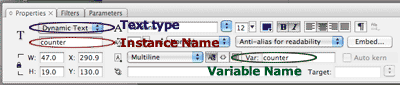
Now, if we test our movie again, you should see a display of the number of times the animation has played in the bottom corner of the stage. The last thing we want to do is place a “replay” button on the so we can see the demonstration again.
Let’s add a new layer to our timeline and call it “Replay”. Below the “counter” text on the stage, let’s draw a text box and type the words “Demonstrate Again”. Note: be sure to change the “Text type” in our properties window back to “static”. Click on the text, select “Modify > Convert to Symbol” (F8), and give this a name of “mc_reset” and be sure to select the “movie clip” radial. With our new symbol selected, let’s give this an instance name of “mc_reset”, and add the following code to the Actions Panel:
on (release) {
_root.counter -= 3;
_root.mc_ball.gotoAndPlay(“begin”);
this.gotoAndPlay(“begin”);
}
Now, double click on the mc_reset symbol to bring us into the symbol editing mode and add 2 new layers, one named “actions” and one named “labels”. Let’s also add a new frame to all three layers. In the “actions” layer, add the following code to the Actions Panel on both frames:
stop();
Now, in the “labels” layer, let’s label frame 1 “begin” and frame 2 end”. Lastly, let’s delete the content from frame 1 of our text layer so that we only see the “demonstrate again” on the seconcd frame.
Still with me? Don’t worry, we are almost done…
Go to your “mc_ball” symbol, and on the last frame in the “actions” layer in the Actions Panel, add the code in blue below to the existing code (the code in green is what was added previously:
_root.counter += 1;
if (_root.counter >= 3) {
_root.mc_ball.stop();
_root.mc_reset.gotoAndStop(“end”);
}else {
_root.mc_ball.gotoAndPlay(“begin”);
}
Return to the main stage and test your movie. What you should now see is the counter increase by one each time the circle crosses the stage, and when it hits 3, it should stop, and the “demonstrate again” text should appear. When you click on this text, the counter should return to zero and the ball should travel across the screen again.
And that’s all, we are now done! What? You want to know what this code does? Ok… let me try to explain it:
Actions Scene 1, Frame 1:
var counter = 0
This adds a varialbe called “counter” with a value of “0”.
Actions mc_ball, Final Frame:
_root.counter += 1;
this says to add 1 to our variable called counter which we declared in scene 1
if (_root.counter >= 3) {
_root.mc_ball.stop();
_root.mc_reset.gotoAndStop(“end”)
}
If the counter variable is greater than or equal to 3 (the number of times we want our clip to play), perform the actions between the curly brackets. The actions between the curly brackes are telling the “mc_ball” movie clip to stop playing, and it’s also telling the “mc_reset” clip (our Demonstrate Again button…) to go to the frame labeled “end”.
else {
_root.mc_ball.gotoAndPlay(“begin”);
}
If the counter variable is NOT greater than or equall to zero (the requirements we asked for in the “if” statement above), perform the actions between the curly brackets. The actions between the curly brackets are telling our “mc_ball” movie clip to go back to the begining and play again.
Hopefully that helps explain things, and I’ve tried to comment the source file for everyone to make sure it’s clear. As always, I hope you found this tutorial helpful, and if you have any questions or comments please leave them below!
Source Files (Flash 8): Flash Button Tutorial: Source File


Exactly what I was looking for but unfortunately it doesn’t work for me. When I preview the animation in flash, the error pannel opens saying “1120: Access of undefined property _root”. However the movieclip targeted doesn’t stop either (this is what I want it to do at this certain moment).

Hey Paul,
Sorry that this isn’t working for you… If you can email me the file: contact@spitshine-design.com, I can take a look at it for you, or you can try posting the AS code here and I’ll see if I can debug it…
– Mike
I found your site on faves.com bookmarking site.. I like it ..gave it a fave for you..ill be checking back later
Hi!
just read your tutorial! nice
But I wonder if you can help me in some matter ?
I want to be able to use a button, and the button wont work before the third time I press it.. For example you press on a ball, and nothing happens. You push it a second time and nothing happens. Yu push it a third time and i turns green and run away any help?
Hi Christer,
What you want to do is kind of similar to what’s happening here, but with a little modification. I’ll take a look at it later today and see if I can explain it for you fully, but a quick heads up is that instead of using this code on the enter frame,
_root.counter += 1;
you would apply it to your button similar to this:
on(release) {
_root.counter +=1;
}
Then, you would use the following script: (notices I changed the first if to be less than or equal to 3, the number of times you want the button to be clicked).
if (_root.counter <= 3) { _root.mc_ball.stop(); } else { _root.mc_ball.gotoAndPlay(”begin”); } This was just a quick look at it, so I haven’t thoroughly tested it yet, but hopefully it gets you started. Let me know if you figure it out, but I’ll get back to you with a more thorough explanation. Thanks for reading! – Mike
Hi Mike,
I was surfing the web for flash tutorials and I found yours. I would like to thank you for having the time to replay to people that have questions about your code or want to do some changes. I think that’s great because most people don’t do that.
thanks again, keep the good work..
wow thank you Mike,
I’m doing my Flash assignment and your tutorial is really helpful.
Thank to your entry I can finish a very important part of my assignment, which is somehow similar to this
Keep on posting such great works ^^
perfect execution of instruction! informative and very helpful for those of us new to code.Thanks.
Hi,
Thanks for a great tutorial. New to actionscript, and I´ve been looking for the right way to play a movie clip a certain times before moving onto the next clip.
This explains it perfectly – helped me get past this hurdle – onwards to the next one.
cheers
T
[…] View Tutorial No Comment var addthis_pub=”izwan00″; BOOKMARK This entry was posted on Thursday, July 2nd, 2009 at 4:52 pm and is filed under Adobe Flash Tutorials. You can follow any responses to this entry through the RSS 2.0 feed. You can leave a response, or trackback from your own site. […]
Due to overwhelming response to this tutorial, comments for this post are closed. If you are having problems, please refer to other users comments above, as the issue may already have been addressed.
Thanks for reading,
Mike